SIM Lost & Aadhaar Biometric Locked? How to Unlock Without SIM (My 80 km Real Story)
 Saurab Thakur
If you have landed on this blog post, there is a 99% chance you are panicking right now and typing things like “unlock biometric without SIM”, “SIM lost biometric locked”, or “how to unlock Aadhaar biometric without OTP” into Google at 2 AM.
Take a deep breath. I was in your exact shoes very recently.
For the longest time, I was that super-cautious guy in the family WhatsApp group telling everyone to lock their Aadhaar biometrics. You read the news every other week—someone’s thumbprint gets cloned from a property registration deed or a shady local kiosk, and before they even get an SMS, their bank account is wiped out through AePS (Aadhaar Enabled Payment System). Even UIDAI and cybersecurity experts keep repeating the same advice: lock your biometrics on the mAadhaar app, and only unlock it when you need to do an e-KYC.
On paper, locking your Aadhaar biometrics gives you great peace of mind:
- Nobody can authenticate your Aadhaar using your fingerprint or iris scan without your permission.
- AePS cash withdrawals are completely blocked, so scammers cannot touch your bank balance.
- Nobody can quietly issue a fake SIM card in your name using a cloned thumbprint.
So I locked mine. I felt smart, responsible, and completely safe.
Until I lost my Aadhaar-linked SIM card. And that is when I discovered that this “ultimate security feature” can turn into a bureaucratic nightmare with no obvious escape button.
SIM Lost, Aadhaar Biometric Locked: The Ultimate Catch-22 Trap
Here is the exact trap thousands of Indians are falling into right now. My registered mobile number—the one linked to my Aadhaar—went dead because I lost the physical SIM card and could not get that exact number reissued in time.
At first, I thought: No big deal, we live in Digital India. I will just walk into the nearest Aadhaar Seva Kendra or bank, pay ₹50, give my biometrics, and link my new phone number.
Wrong. Here is why “SIM lost + biometric locked” creates a critical deadlock in UIDAI’s current architecture:
- You cannot unlock Aadhaar biometrics online without SIM/OTP: If you visit the myAadhaar portal or open the mAadhaar app to unlock your biometrics, it immediately requires an OTP sent to your registered mobile number—which you no longer have.
- You cannot update your mobile number at a normal centre because your biometrics are locked: When you ask a local Aadhaar operator to link a new phone number, their system tries to authenticate you using your biometrics. The moment they scan your fingers or eyes, the UIDAI server blocks the login because your biometrics are locked!
The Deadlock: You cannot unlock your biometrics without the old SIM, and you cannot update the phone number without unlocking your biometrics. You are locked out of your own identity.
Can You Unlock Biometrics Without SIM Online? (The Honest Truth)
When people frantically search for “how to unlock biometric without SIM” or “how to unlock Aadhaar biometric without OTP”, dozens of clickbait YouTube videos and forum posts claim there is a secret portal hack or customer service bypass.
Let me save you hours of wasted effort: No, you cannot unlock your Aadhaar biometrics online without an OTP on your registered mobile number.
Calling the UIDAI toll-free helpline (1947) will not unlock it either—customer support representatives do not possess the administrative authority or biometric bypass mechanisms to override biometric locks over a phone call.
Your only working solution is to update your mobile number offline at an Aadhaar centre that runs ECMP software—not the standard UC software running at most local banks and post offices. Understanding the difference between UC and ECMP is the key to solving this.
Why Banks & Post Offices Fail: The UC vs. ECMP Software Problem
When I started asking around, everyone gave the usual advice: “Just go to the head post office or the bank branch nearby; they have an Aadhaar counter.”
I spent days running from one bank branch to the next post office in my town, and every attempt hit a brick wall. What ordinary citizens are never told is that most local bank and post office Aadhaar counters run UC (Update Client / Universal Client) software rather than the full ECMP (Enrolment Client Multi-Platform) software.
The UC system is equipped with a full hardware setup to scan all 10 fingerprints and both irises. When I sat down at a local UC centre, the operator tried scanning all ten of my fingers and even ran an iris scan.
It still failed.
Why UC Fails Every Single Time
On a UC client, if your Aadhaar biometric is locked, the software prevents the operator from accessing your profile to edit your mobile number—regardless of whether you provide all 10 fingerprints or an iris scan. Every attempt on a UC machine hits an authentication firewall at the entry screen. Operators usually do not understand why and simply tell you “the server is down.”
Quick Comparison: UC vs. ECMP Client
| Feature | UC Client (Local Banks & Post Offices) | ECMP Client (Major Aadhaar Seva Kendras) |
|---|---|---|
| Primary Purpose | Quick demographic updates | Full new enrolments & deep updates |
| Initial Operator Entry | Resident Biometric (Fingerprint/Iris) | Face Scan / Operator credentials |
| Works with Biometrics Locked? | ❌ No (Blocks access immediately) | ✅ Yes (Enters profile via live face photo) |
| Number Update Completion | Fails due to locked status | Completed via Iris Scan (no prints needed) |
| Where to Find | Common (Neighborhood branches) | Rare (District Headquarters / UIDAI ASKs) |
How I Finally Fixed It on ECMP (My 80 km Journey)
After repeated failures at UC counters despite multiple iris scans, I learned that the only way to break the deadlock was an active ECMP (Enrolment Client Multi-Platform) installation.
The nearest operational centre confirmed to run the full ECMP software was 80 kilometres away from my home.
I left early in the morning with all my identity documents and waited in a long queue. When my turn arrived, I explained the situation to the operator. Watching his screen, I saw step-by-step how ECMP bypassed the lock:
- No fingerprints were taken: The operator did not ask me to place my hands on the fingerprint scanner.
- Face Scan for Profile Entry: The operator captured a live face photo. That live face authentication allowed the ECMP system to open my resident profile without triggering the fingerprint lock error!
- Updating the Phone Number & Iris Scan: Once inside my profile, he entered my new mobile number. To validate and finalize the update packet, he captured an iris scan (eye scan)—without touching my fingerprints.
- Instant Update: He handed me the update acknowledgement slip.
Within minutes of leaving the desk, I checked my status in the waiting room: my new mobile number was already active in the system!
I immediately logged into the portal using the OTP on my new SIM and permanently unlocked my biometrics.
My Personal Takeaway: Keeping biometrics locked sounds great in theory, but when you lose a SIM, the real-world recovery process is punishing. If an emergency strikes, or if the few remaining ECMP centres are unavailable, you are stranded.
What Are the Risks If You Keep Aadhaar Biometrics Unlocked?
If you leave your biometrics permanently unlocked so you never get locked out of your identity again, what are the actual risks?
- AePS Cash Siphoning: Scammers who acquire your Aadhaar number and clone your thumbprint (e.g., from land registry public deeds) can attempt unauthorized cash withdrawals through AePS.
- Unauthorized e-KYC Verification: Someone could theoretically spoof your fingerprint to complete an offline KYC verification.
Fortunately, there is a far safer way to protect your money without ever touching the Aadhaar biometric lock toggle again.
The Smarter Alternative: Keep Biometrics Unlocked, Disable AePS at Your Banks
Instead of locking your Aadhaar—which locks you out of your identity if your SIM card fails—block the vulnerability directly at the banking layer.
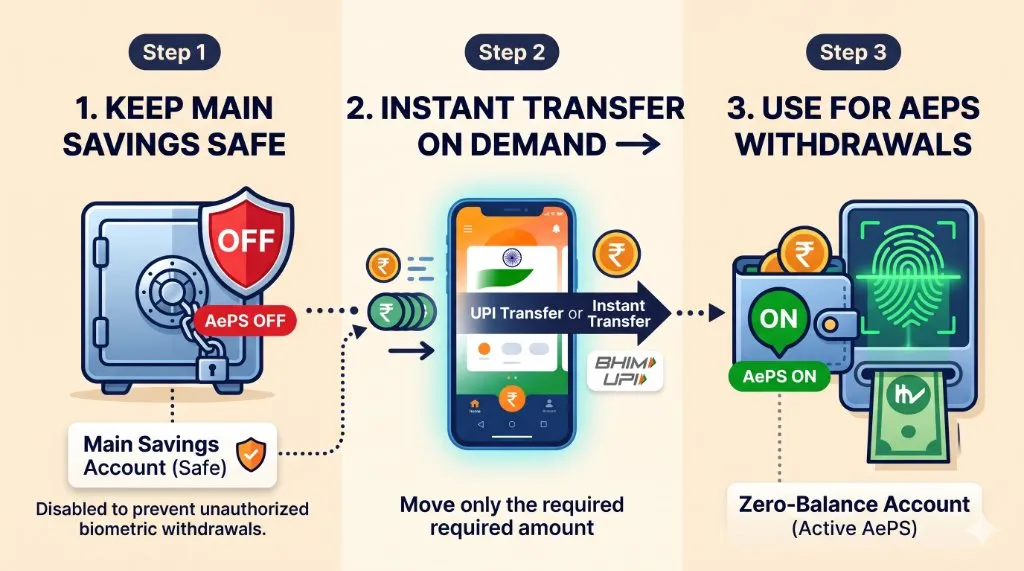
Here is the exact 3-step strategy to stay 100% safe:
1. Turn OFF AePS on All Primary Bank Accounts
Nearly every major bank in India allows you to disable AePS (Aadhaar Enabled Payment System) through internet banking, mobile banking apps, or a written branch request.
Disable AePS on every account holding your salary, savings, or investments. Once AePS is disabled at the bank level, even with your Aadhaar biometrics completely unlocked, nobody can withdraw a single rupee using your fingerprint.
2. Keep One Zero-Balance Account with AePS Enabled
If you occasionally need AePS for rural cash points or emergency withdrawals, keep a dedicated zero-balance account (such as Airtel Payments Bank, Paytm Payments Bank, or an IPPB account) with AePS turned on.
Keep this account balance at ₹0 at all times. If anyone attempts an AePS fraud on this account, the transaction automatically declines due to insufficient funds.
3. Transfer Funds via UPI Right Before AePS Withdrawals
When you actually need cash via an AePS merchant:
- Open your UPI app and transfer the exact withdrawal amount from your primary bank into your zero-balance account.
- Complete your biometric withdrawal at the counter.
- The zero-balance account immediately returns to ₹0.
An instant UPI transfer takes 15 seconds, keeps your life savings completely immune to cloned thumbprints, and ensures you never get trapped by the “SIM lost biometric locked” loop again.
Frequently Asked Questions (FAQ)
Why did my local bank or post office fail even with an iris scan?
Local branches use UC (Update Client) software. Even with 10-finger and iris hardware attached, UC requires biometric authorization right at the initial lookup. If your biometrics are locked in UIDAI’s database, UC cannot bypass the login screen to modify demographic fields like your phone number.
How do I locate an Aadhaar centre running ECMP?
Contact district-level UIDAI administrative hubs, main UIDAI-operated Aadhaar Seva Kendras (ASK), or regional government headquarters (e.g., Mini Secretariats or Collectorate Aadhaar branches). Avoid neighborhood third-party CSC kiosks or small bank branches, which almost exclusively operate UC software.
What documents should I carry to the ECMP centre?
Carry your physical Aadhaar card (or known 12-digit Aadhaar number), your new active SIM card in a working phone to verify test messages, and an officially recognized photo ID (such as a PAN card, Passport, or Voter ID) in case the operator requires secondary verification.
Should I lock my Aadhaar biometrics again after updating my SIM?
If you follow the banking security strategy outlined above (disabling AePS across all primary bank accounts), keeping your Aadhaar biometrics unlocked is significantly safer. It completely eliminates the risk of being locked out of your own identity if your phone is lost, stolen, or damaged.